HTTP Operation Type Object DTO Why-DTOs?
(Mutation Why 200?) uploadFileToEntity UploadFileInput

Description

This mutation allows you to upload a PDF or image file (or XML file for DE legislation) of a purchase invoice for automated OCR analysis.
AP AUTOMATION (Accounts Payable Automation) is a variant of UploadFileToEntity, specifically designed for the case where entityType = "AP_AUTOMATION".
When this value is used, the system analyzes the file to automatically create a purchase invoice draft based on the content extracted by the OCR engine.

Unlike uploads to existing business records, here:

  • no entityId is provided, since the purchase invoice does not yet exist at upload time;
  • only specific file types are allowed (pdf, jpg, jpeg, png).
    For the DE legislation, XML invoice files (.xml) are also supported.

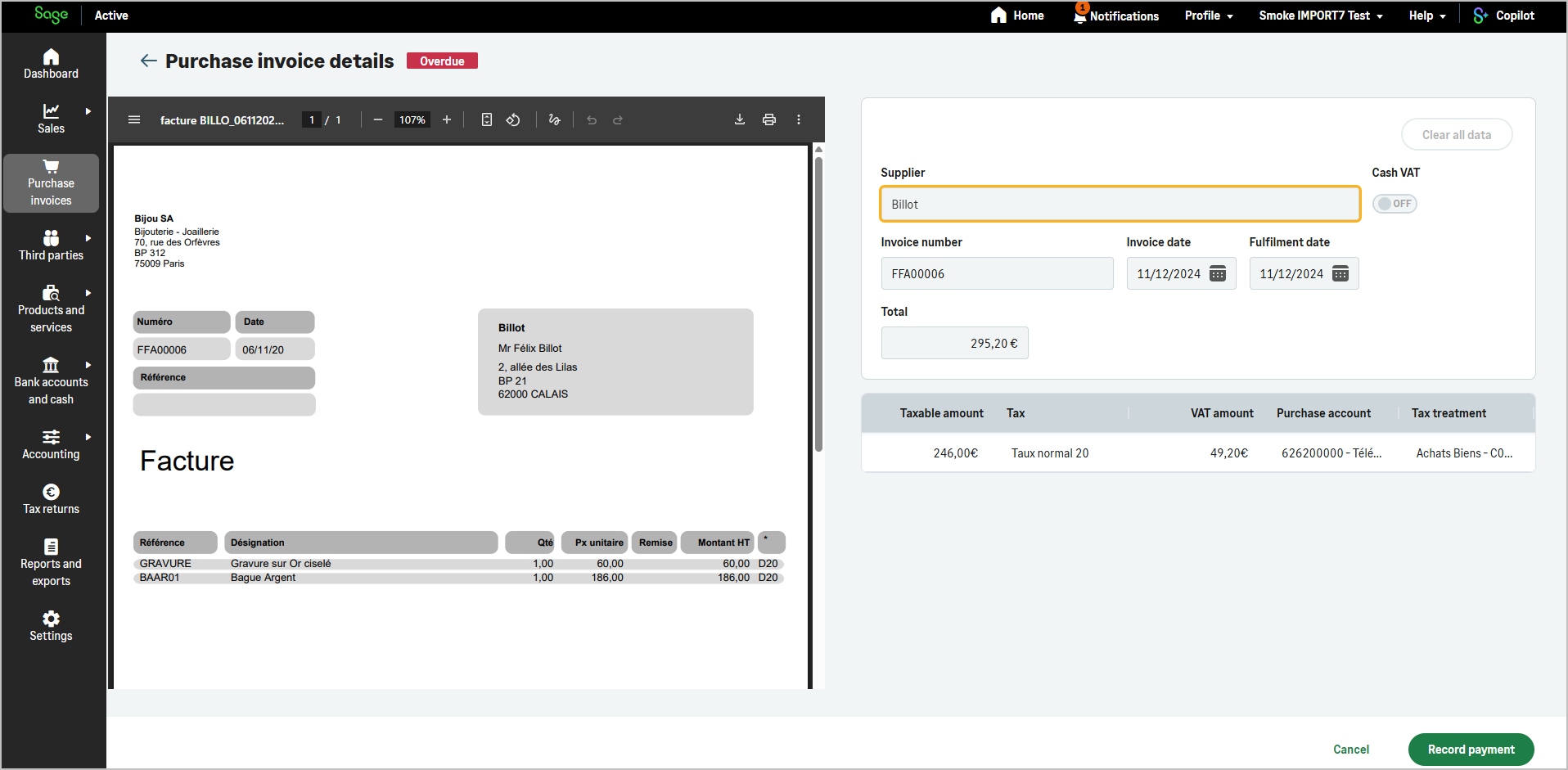
The generated purchase invoice will appear in the Purchase Invoices module after the OCR process completes, ready for validation and accounting posting.
img

Required Parameters

Upload logic and multipart structure

The upload process follows the GraphQL multipart request specification, supported by HotChocolate.

You must send:

A required HTTP header GraphQL-preflight: 1 must be included in your upload requests.
Without it, the upload will be rejected for security reasons.

Key Value
Authorization Bearer Current access Token How to find?
X-TenantId Current tenant id Why deprecated ?
X-OrganizationId Current organization Id How to find?
x-api-key Primary or secondary subscription key of your app How to find?
GraphQL-preflight ⚠️ 1
GraphQL Mutation
mutation($input: UploadFileInput!) {
  uploadFileToEntity(input: $input) {
    id
  }
}
GraphQL Variables (in operations)
{
  "input": {
    "file": null,
    "entityType": "AP_AUTOMATION",
    "fileName": "supplier-invoice",
    "businessDate": "2025-10-30",
    "comment": "Purchase invoice sent for OCR analysis"
  }
}
File Binding Map (in map)
{
  "0": ["variables.input.file"]
}
File Part (in the multipart request)
--boundary
Content-Disposition: form-data; name="0"; filename="supplier-invoice.pdf"
Content-Type: application/pdf

(binary file content here)
--boundary--

Most GraphQL clients (Postman, Insomnia, Apollo Upload Client, etc.) handle this automatically when using the Upload scalar. Make sure that:

  • the file field is named 0,
  • the JSON parts (operations and map) are correctly linked,
  • and the header GraphQL-preflight: 1 is present.
Example Response
{
  "data": {
    "uploadFileToEntity": {
      "id": "f3a28b79dce24f129e7e4a4a98b4b13f.pdf"
    }
  }
}

In Postman, uploading a file via GraphQL requires setting a multipart/form-data request, adding the GraphQL-preflight: 1 header, and correctly populating the operations, map, and file parts of the request.

Steps:
  1. In Postman, open the Headers tab.
  2. Add the usual authentication headers required for any API call:
    • Authorization: Bearer {Current access Token}
    • X-TenantId: {Current tenant id}
    • X-OrganizationId: {Current organization id}
    • x-api-key: {Primary or secondary subscription key}
  3. Add an additional header specifically required for uploads:
    • Key: GraphQL-preflight
    • Value: 1
  4. In the Body tab, select form-data.
  5. Set the following three key/value pairs:

    Key Type Value / Example
    operations Text GraphQL mutation + variables, with file: null (see example below)
    map Text { "0": ["variables.input.file"] }
    0 File The actual file to upload (e.g., invoice-q1.pdf)
  • operations:
    A JSON string containing the GraphQL mutation and its variables, as in the following example.
    The file field must be set to null in the variables.
Example operations
{
  "query": "mutation($input: UploadFileInput!) { uploadFileToEntity(input: $input){id}}",
  "variables": {
    "input": {
      "file": null,
      "entityType": "AP_AUTOMATION",
      "fileName": "invoice-q1",
      "businessDate": "2025-10-30",
      "comment": "Purchase invoice sent for OCR"
    }
  }
}

Make sure:

  • Content-Type is multipart/form-data
  • The uploaded file is one of the supported types: pdf, jpg, jpeg, or png (or xml for DE legislation)
  • The GraphQL-preflight header is set to 1 </div>

UploadFileInput Input Parameters (AP_AUTOMATION context)

Fields Type Description Length
file Upload Must be set to null  
entityType Enum Must be AP_AUTOMATION  
fileName String Display name to assign to the uploaded file 100
businessDate DateTime Relevant date associated with the file  
comment String (Optional) Optional comment or description 255
Info
  • file: This field must be included in the GraphQL variables but always set to null.
    The actual file content is not sent as part of the JSON payload.
    Instead, it is transmitted separately using the multipart/form-data protocol, following the GraphQL multipart request specification.
    The server automatically binds the uploaded file to this field at runtime based on the mapping defined in the map section of the multipart request.

    Remember : The file content to upload must be a PDF, JPG, JPEG, or PNG file (or XML for DE legislation).

  • entityType: When entityType = AP_AUTOMATION, the upload triggers the OCR service.
    Once the file is analyzed:
    • A draft purchase invoice is automatically created in Sage Active.
    • The file is attached to that new invoice.
    • The invoice can then be reviewed, validated, and posted in accounting.
  • fileName: (Optional) Defines the display name of the uploaded file.
    • It can be used to assign a clearer or more descriptive name than the original filename.
    • If provided with an extension, the extension will be automatically removed.
    • If not provided, it defaults to the original file name without its extension.
    • The file extension is automatically stored in the type field.
  • businessDate: (Optional) Represents the business-relevant date associated with the uploaded file.
    It can be used to override the automatic date detection and set a specific business date.
    For example, if the file upload date is January 15 but the invoice actually refers to January 3, you can manually set businessDate to 2025-01-03.
    If not provided, the businessDate will automatically default to the file’s upload date.

uploadFileToEntity Response

Returns the unique file ID (including the extension):

Field Type Description
id String File identifier (e.g., "f3a28b79dce24f129e7e4a4a98b4b13f.pdf")
Example Response
{
  "data": {
    "uploadFileToEntity": {
      "id": "f3a28b79dce24f129e7e4a4a98b4b13f.pdf"
    }
  }
}

Once the OCR analysis is complete, a purchase invoice is automatically created from the uploaded document.
This invoice record contains the fields fileId and fileName, which reference the uploaded file that triggered its creation.

You can retrieve the purchase invoice linked to a file in two ways:

  1. Retrieve the purchase invoice directly from the uploaded file ID (the file ID is a String value, for example “a2b68ae9be594c1fbde5a60b77612506.pdf”)

    where: { fileId: { eq: "a2b68ae9be594c1fbde5a60b77612506.pdf" } }
    
  2. Retrieve a specific purchase invoice by its ID (the purchase invoice ID is a standard UUID, for example “12207dc9-97d8-49e4-acde-d2f7ae6f9a37”)

    where: { id: { eq: "12207dc9-97d8-49e4-acde-d2f7ae6f9a37" } }
    

Below is a complete example of reading a purchase invoice by its ID, followed by a second query that retrieves information about the uploaded file associated with this invoice.

query ($purchaseInvoiceId: UUID!) {
  purchaseInvoices(
    where: {
      id: { eq: $purchaseInvoiceId }
    }
  ) {
    edges {
      node {
        id
        sourceType
        status
        description
        fileId
        fileName
        invoiceNumber
        invoiceDate
        operationDate
        firstDueDate
        totalLiquid
        pendingAmount
        hasCashVat
        supplier {
          socialName
        }
      }
    }
  }
}
Example Variables
{
  // ID of the purchase invoice created by the OCR upload
  "purchaseInvoiceId": "12207dc9-97d8-49e4-acde-d2f7ae6f9a37"
}
Example Response
{
  "data": {
    "purchaseInvoices": {
      "edges": [
        {
          "node": {
            "id": "12207dc9-97d8-49e4-acde-d2f7ae6f9a37",
            "sourceType":"AP_AUTOMATION",
            "status": "Pending",
            "description": "sales.businessErrors.simplifiedPurchaseInvoiceManuallyAddedMessage",

             // These fields reference the uploaded file linked to this invoice
            "fileId": "a2b68ae9be594c1fbde5a60b77612506.pdf",
            "fileName": "Amazon.pdf",

            "invoiceNumber": "INV-2025-0042",
            "invoiceDate": "2025-10-23",
            "operationDate": "2025-10-23",
            "firstDueDate": "2025-11-30",
            "totalLiquid": 1450.75,
            "pendingAmount": 1450.75,
            "hasCashVat": false,
            "supplier": {
              "socialName": "Amazon EU SARL"
            }
          }
        }
      ]
    }
  }
}

Once the fileId value is known, you can use it to retrieve detailed information about the uploaded file using the files query.
This also allows you to access the previewPath field, which provides the URL needed to preview the uploaded file (for example, to display the PDF or image in a viewer).

Before running the query, make sure that the sourceType of the purchase invoice is equal to AP_AUTOMATION, or that the fileId field is not null.
Invoices created directly from the Sage Active interface, or through the API using createPurchaseInvoice, do not have an associated file.

query ($fileId: String!) {
  files(
    where: { id: { eq: $fileId } }
  ) {
    edges {
      node {
        id
        status
        entityId
        entityType
        uploadDate
        businessDate
        fileName
        type
        comment
        mimeType
        size
        previewPath
      }
    }
  }
}
Example Variables
{
  // fileId value obtained from the previous purchase invoice query
  "fileId": "a2b68ae9be594c1fbde5a60b77612506.pdf"
}
Example Response
{
  "data": {
    "files": {
      "edges": [
        {
          "node": {
            "id": "a2b68ae9be594c1fbde5a60b77612506.pdf",
            "status": "Done",
            "entityId": "12207dc9-97d8-49e4-acde-d2f7ae6f9a37",
            "entityType": "AP_AUTOMATION",
            "uploadDate": "2025-10-23T15:51:40.218Z",
            "businessDate": "2025-10-23",
            "fileName": "Amazon",
            "type": "pdf",
            "comment": "Purchase invoice sent for OCR analysis",
            "mimeType": "application/pdf",
            "size": 245678,
            "previewPath": "/files/pR4mGwVe"
          }
        }
      ]
    }
  }
}

See also Purchase invoices for more details on this entity and its fields.

Errors depending on the uploaded file

For businessError messages, you can use localizedErrorMessage to resolve the associated label in the desired language.

Error Code HTTP Description
global.businessErrors.files_fileTypeNotAllowed 200 Returned when the uploaded file has an extension that is not permitted in the AP_AUTOMATION context.
Supported types are: pdf, jpg, jpeg, png (and xml for DE legislation).
global.businessErrors.files_fileTooLargeOrEmpty 200 Returned when the uploaded file is empty or exceeds the maximum allowed size of 20 MB.
global.businessErrors.files_fileUploadError 200 Returned when the uploaded file could not be uploaded due to an unexpected error.
global.businessErrors.files_importServiceFailure 200 Returned when the Import Service fails to process the uploaded file.
global.businessErrors.files_unknownError 200 Returned when an unexpected error occurred during file upload or processing.

How to verify that a file was successfully uploaded

File uploads are processed asynchronously.
After the upload request is received, the file is placed in a queue for antivirus scanning to ensure it is not infected.
A file passes through several status values during this process:

Status Description
Pending Upload in progress
ToCheck File ready to be submitted to the antivirus solution
Done File is safe and has been stored
Rejected File is infected and was not stored

To check the status of a file, use the files query, filtering by the file id, and check the value of the status field.

GraphQL Query Example (filtering by file ID)
query {
  files(
    where: {
      id: { eq: "98f7adc7dd104cd984f9c113ef9a8e54.pdf" }
    }
  ) {
    edges {
      node {
        fileName
        status
      }
    }
  }
}
Example Response
{
  "data": {
    "files": {
      "edges": [
        {
          "node": {
            "fileName": "invoice-q1",
            "status": "Done"
          }
        }
      ]
    }
  }
}

By default, the files operation automatically filters out files whose status is not Done, so that only accessible files are returned.
The only exception is when filtering by id, in which case this automatic filter is not applied, allowing you to check the status of an uploaded file.